
Does your IV7 app close the moment you open it? You tap the icon. The screen goes black. Then you are back on the home screen. It’s really annoying, and we get it. The good news is that this is usually easy to fix. Most crashes come from old cache files, low memory, or an outdated system part. You don’t need any tech skills. Just follow the steps below, one by one. I’ve kept the words simple and the steps short. The fix steps have the most detail so that you won’t get lost. Take a deep breath. Read on and get your IV7 app working again. Let’s get started now.
Why Does Your IV7 App Keep Crashing on Startup?
Your phone does many things at once. An app needs memory, storage, and a few system parts to run. If one of them has a problem, Android shuts the app down. It does this to protect your phone. Here are the four most common causes.
| Cause | What Happens | Best Fix |
| Damaged cache | Saved files break after a sudden shutdown | Clear the cache |
| Old WebView | Web parts can’t show the app screens | Update Android System WebView |
| Low RAM or storage | The phone runs out of working space | Close apps and free up space |
| Broken setup file | A cut-off download made a bad file | Reinstall with a fresh file |
Start at the top of the table. The first fix solves the most cases.
Have You Tried Force Stopping and Restarting Your Phone?
Always try the easy things first. A restart clears many small glitches. It only takes a minute, so don’t skip it.
Step 1: Force stop the app
- Open Settings.
- Tap Apps or App Management.
- Find the IV7 app and tap its name.
- Tap Force Stop at the bottom.
- Open the app again and see if it stays open.
Step 2: Restart your phone
- Hold the power button for about 3 seconds.
- Tap Restart.
- Wait until the phone is fully on. Don’t rush this part.
- Open the IV7 app once more.
Still crashing? Go to the next fix.
Is Clearing Cache Needed to Fix the Errors?
Cache means small temporary files. The app saves them every time you use it. Over time, some of them get damaged. Then the app crashes. Clearing them is safe.
- Clear Cache: This removes the temporary files. Your login and settings stay.
- Clear Storage: This resets the app to a fresh start. You will have to log in again. Use this one last.
Here’s how to do it.
- Open Settings, then Apps, then the IV7 app.
- Tap Storage and Cache. On some phones, it is just called Storage.
- Tap Clear Cache. Do this first.
- Open the app and test it.
- Still crashing? Now tap Clear Storage. Make sure you remember your password before you do this.
Don’t tap Uninstall by mistake. That’s a different step, and we’ll get to it later.
Could Android System WebView Be the Problem?
WebView is a system part. It lets apps show web pages inside their own screens. If it’s old or broken, the app can crash right at launch. The fix is quick.
- Open the Google Play Store.
- Search for Android System WebView.
- Tap Update if you see that button.
- Search for Google Chrome. Update it too.
- Restart your phone.
- Open the IV7 app and test it.
On some phones, there’s no WebView update button. That’s okay. It means yours is already current, or Chrome handles it. Just move on.
Does Your Phone Have Enough Free Storage and RAM?
Apps need room to unpack pictures and run smoothly. If your phone runs out of room, Android closes apps on its own. These three checks help a lot.
- Check your storage: Keep at least 1 GB to 2 GB free. Delete old videos and apps you don’t use. You can also move photos to the cloud.
- Close background apps: Open your recent apps screen. Swipe away the ones you aren’t using. This frees up memory fast.
- Turn off Battery Saver: This mode slows your phone down. That can cause crashes. Switch it off while you use the IV7 app.
Do all three before you try a reinstall. They’re quick, and they often do the job.
Should You Reinstall the IV7 App?
If nothing has worked yet, the app file may be damaged. A download that got cut off can break key parts. A clean reinstall fixes that. Take your time with each step.
Remove the old app
Press and hold the app icon. Tap Uninstall. Confirm when your phone asks.
Delete old setup files
Open File Manager and go to Downloads. Delete any old setup files for the app. If you leave them, you may install the same broken file again.
Download a fresh file
Use a source you trust. The web address should start with https. Connect to Wi-Fi so the download doesn’t break. Tap the button just once, then wait until it finishes. Compare the file size with the size on the source page. A big gap means a bad file, so delete it and try again.
Allow the install
If Android asks, open Settings and switch on Install Unknown Apps for your browser. Then tap Install and wait for the bar to finish.
Switch the permission off
After the install ends, go back and turn Install Unknown Apps off again. This keeps your phone safer.
Log in again
Open the IV7 app and sign in with your details.
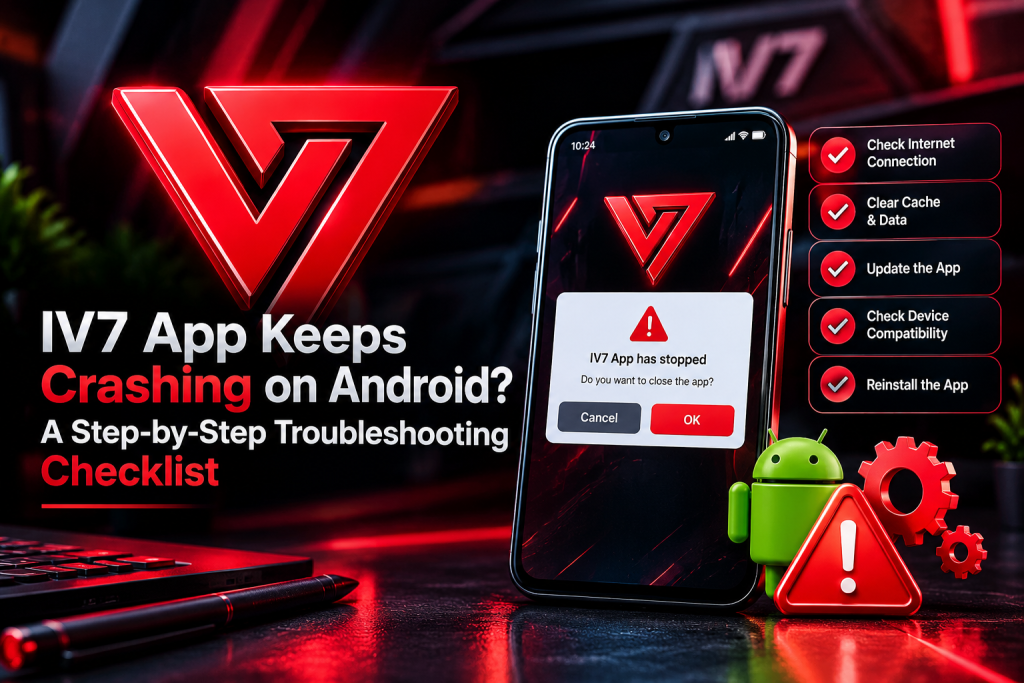
Quick Summary Checklist for Troubleshooting
Come back to this list any time the app lags or shuts down.
| Order | Action | Good Sign |
| 1 | Force stop and restart | Memory is cleared |
| 2 | Clear the app cache | Broken temp files are gone |
| 3 | Update WebView | Screens load cleanly |
| 4 | Free up 1 GB of storage | The phone has room to work |
| 5 | Reinstall cleanly | Damaged files are replaced |
Conclusion
Most crashes are quick to fix. Force stop the app and restart your phone. Clear the cache. Update WebView. Free up some space. Reinstall only if you must. Follow these steps and your IV7 app should run normally again. Always get your files from a source you trust. Check each file before you install it. And go step by step. You’ve got this.
For safe guides about iv7gameapkin, use sources you can trust. For authentic app updates, verified installer links, and safe usage guides, visit ic7app.net.
FAQs: Resolving Application Issues Fast
1. Why does my IV7 app close right after opening?
Broken cache or an old WebView is the usual reason. Clear the cache first, then update WebView.
2. Will I lose my balance if I delete the IV7 app?
Your account data is usually kept on the server, not on your phone. Log in again after the reinstall to check.
3. How do I stop lag on an older phone?
Close background apps and free up 1 GB of space. Also switch off battery saving while you play.
4. Do I need to update my phone for the IV7 app?
Updates fix clashes between your phone and your apps. Keep Android up to date when you can.
5. What if the IV7 app still crashes after a reinstall?
Check your internet and your free storage. If it still fails, contact the official support team.